Manav Sampada UP is the official Electronic Human Resource Management System (eHRMS) launched by the Government of Uttar Pradesh for its over 1.7 million state government employees. Managed by the National Informatics Centre (NIC) under the Ministry of Electronics and Information Technology, this powerful digital platform is accessible at the official website https://ehrms.upsdc.gov.in.
The Manav Sampada portal has completely transformed how UP government employees manage their professional lives. From applying for leave and downloading salary slips to tracking transfers and filing property returns — everything is now available online, paperless, and transparent. Whether you are a teacher under the Basic Education department, a medical professional, or a revenue officer, this single portal serves all your HR needs efficiently.
Manav Sampada UP Login: Step-by-Step Process
Logging into the Manav Sampada UP portal is simple once you understand the correct procedure. Follow these steps carefully for a smooth eHRMS UP login experience.
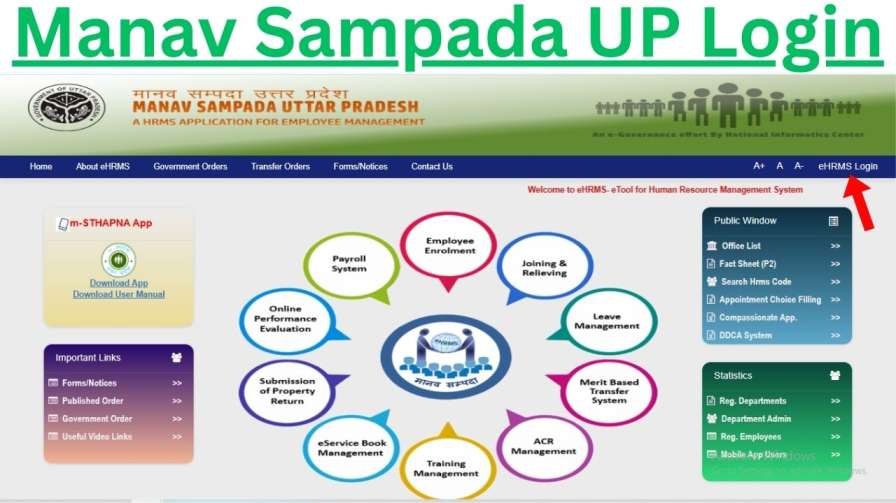
Step 1: Visit the Official Website
Open your browser and navigate to the official Manav Sampada portal: https://ehrms.upsdc.gov.in. Always use this official URL to avoid phishing websites. Bookmark this page for future use.
Step 2: Click on eHRMS Login
On the homepage, locate the "eHRMS Login" button positioned at the top-right corner of the screen. Click on it to open the login form.
Step 3: Select Your Department
A dropdown menu will appear. Select your department carefully:
- Basic Education Teachers → Select EDUBASIC
- Medical & Health Staff → Select MEDHLTH
- Police/Home Department → Select the respective department code
- All other employees must choose their designated department code
Selecting the wrong department is one of the most common login errors. Always double-check this step.
Step 4: Enter Your Login Credentials
User ID: Enter your unique 8-digit Employee ID. This serves as your primary identifier on the Manav Sampada portal. You can also use your Aadhaar-linked registered mobile number.
Password:
- First-Time Users: Your default password follows this format — First three letters of your official first name in UPPERCASE + the last four digits of your Aadhaar number. For example, if your name is "Ramesh" and your Aadhaar ends in 7890, your default password will be RAM7890.
- Returning Users: Enter your personally updated, strong password.
Step 5: Complete the Security CAPTCHA
Enter the alphanumeric CAPTCHA code displayed on screen. If the code is unclear, click the refresh icon to generate a new one. An audio CAPTCHA option is also available for accessibility.
Step 6: Click Login
Hit the "Login" button to access your personalized Manav Sampada UP dashboard.
Important Security Note: On your very first login, you will be required to change the default password. Create a strong password with a combination of uppercase letters, lowercase letters, numbers, and at least one special character (e.g., Ram@UP2026). This is mandatory as per updated cybersecurity policy.
How to Recover Your Employee ID on eHRMS UP
If you have misplaced your Employee ID, here are the approved recovery methods:
- Forgot Employee ID Link: Click the "Forgot Employee ID?" link on the login page of ehrms.upsdc.gov.in. Enter your Aadhaar number and verify with an OTP sent to your registered mobile number. Your ID will be displayed instantly.
- Check Official Documents: Your Employee ID appears on your digital salary slip, appointment letter, office orders, and physical ID card.
- Contact Your Nodal Officer: Your department's Nodal Officer can provide your Employee ID. Find their contact in the "Nodal Officer Directory" on the login page of the Manav Sampada portal.
How to Apply for Leave on Manav Sampada Portal
The leave management module is one of the most frequently used features on the Manav Sampada UP portal. Here is the complete path to apply for leave:
Navigation Path: Dashboard → Employee Self-Service → Apply for Leave → New Application
Steps to Apply for Leave:
- Select Leave Type: Choose from Earned Leave, Medical Leave, Child Care Leave (CCL), Maternity Leave, and more. Your real-time leave balance is shown beside each option.
- Enter Leave Dates: Use the calendar tool. The system automatically calculates working days, excluding declared holidays.
- Provide a Reason: Write a clear and detailed reason (minimum 20 characters as per current guidelines).
- Upload Required Documents:
- Medical Leave: Digitally signed medical certificate
- Maternity Leave: Doctor's certificate with expected delivery date
- Child Care Leave: Child's birth certificate and relevant proof
- Accepted formats: PDF, JPEG, or PNG (maximum 2MB per file)
- Review and Submit: Preview your application carefully before submitting. Note your Unique Application ID (format: MS/UP/26/XXXXXX) for future tracking.
Emergency Leave Option (Rule 19.3)
For genuine medical emergencies or unforeseen situations:
- Select the "Medical Emergency/Unforeseen Circumstances" checkbox during application.
- Provisional auto-approval is granted for up to 96 hours.
- You must submit supporting documents within 5 working days through the "Regularize Emergency Leave" module on your dashboard.
Tracking Your Leave Application
Go to: Dashboard → My Applications → Track Leave
- Green: Approved — download QR-coded order
- Yellow: Pending — send a reminder after 3 days
- Red: Rejected — view remarks and reapply
How to Download Salary Slip from Manav Sampada UP
Your digital salary slip is essential for loan applications, visa processing, and financial documentation. Here is how to download it from the eHRMS UP portal:
- Log in successfully at ehrms.upsdc.gov.in
- Go to Dashboard → Employee Services → Payroll & Accounts
- Click on "Salary Slip" or "Download Salary Slip"
- Select the Financial Year (e.g., 2025-26) and the specific Month
- Click "Generate" or "Download"
- The salary slip opens as a password-protected PDF. The password is typically your Employee ID or Aadhaar number.
Pro Tip for EDUBASIC Teachers: Your salary slip will include department-specific allowances. Always verify details such as UAN number, GPF subscription amount, and TDS deductions.
Key Services Available on the Manav Sampada Portal
The eHRMS UP portal offers a comprehensive suite of services for all government employees:
Financial Services:
- Digital salary slip download
- GPF account management and balance check
- Advance request submission
- Form 16 and Tax Documents download
Service & Career Management:
- Digital e-Service Book with Verification Log
- Promotion and increment records
- Annual Confidential Report (ACR) access and acknowledgment
- Training records and skill development tracking
Transfer & Posting:
- Online transfer application
- Seniority points dashboard
- District preference submission
- Real-time digital posting order tracking
Compliance & Transparency:
- Annual Property Return filing (mandatory by December 31 each year)
- Attendance history review with year and month filters
- New employee enrollment and joining/relieving management
Manav Sampada for Basic Education Department (EDUBASIC)
Teachers and staff under the UP Basic Education directorate have a dedicated workflow on the Manav Sampada UP portal. They must always select "EDUBASIC" during the department selection step to access the correct server and services.
Key services for EDUBASIC employees include leave application, e-Service Book access, transfer module, ACR review, and salary slip download. The m-STHAPANA 2.0 mobile app is especially helpful for teachers who need to manage HR tasks on the go.
m-STHAPANA 2.0 Mobile App: Manav Sampada on Your Phone
The official companion app for the Manav Sampada portal is m-STHAPANA 2.0. Available on both Android and iOS platforms, this app brings full portal functionality to your smartphone.
Features of m-STHAPANA 2.0:
- Apply for leave from anywhere, anytime
- Download salary slips on mobile
- View your digital ID card
- Receive real-time notifications for approvals and rejections
- Track leave and transfer status
Warning: Download m-STHAPANA 2.0 only from the official Google Play Store or Apple App Store. Avoid any third-party imitations.
Departments Covered Under Manav Sampada UP
The Manav Sampada portal actively serves all UP government departments including:
Basic Education (EDUBASIC), Secondary Education, Medical & Health (MEDHLTH), Police & Home, Revenue, Rural Development, Public Works Department (PWD), Agriculture, Finance, and Social Welfare — among many others.
Troubleshooting Common Issues on eHRMS UP Portal
| Problem | Solution |
|---|---|
| Portal Not Opening | Wait and retry during off-peak hours (late night or early morning) |
| Wrong Password Error | Clear browser cache, use "Forgot Password" to reset via OTP |
| Login Failure Despite Correct ID | Verify you have selected the correct department code |
| Password Update Failure | Ensure password is 8+ characters with upper, lower, numbers, and special symbol |
| Salary Slip Not Downloading | Check PDF password (Employee ID or Aadhaar), try a different browser |
Manav Sampada Support Contacts
| Issue Type | Contact |
|---|---|
| Technical / Software Issues | NIC Helpdesk — ehrms-up@gov.in |
| Data / Profile Updates | Your Department's Nodal Officer |
| ID / Password Recovery | "Forgot Password" or "Forgot Employee ID?" on login page |
FAQs
Q1. What is Manav Sampada UP?
Manav Sampada UP is the official eHRMS portal for Uttar Pradesh government employees, accessible at https://ehrms.upsdc.gov.in. It manages leave, salary, service books, transfers, and all HR-related services digitally.
Q2. How do I log in to the Manav Sampada portal for the first time?
Visit ehrms.upsdc.gov.in, click eHRMS Login, select your department, enter your Employee ID, use the default password (first 3 letters of name in caps + last 4 digits of Aadhaar), complete the CAPTCHA, and click Login. Change your password immediately after first login.
Q3. How do I reset my Manav Sampada UP password?
Click "Forgot Password" on the login page, enter your 8-digit Employee ID and registered mobile number, receive an OTP, and follow the on-screen instructions to reset your password instantly.
Q4. Can I apply for emergency leave on the eHRMS UP portal?
Yes. Select the "Medical Emergency/Unforeseen Circumstances" checkbox while applying. You get provisional auto-approval for 96 hours and must submit documents within 5 working days through the "Regularize Emergency Leave" module.
Q5. How do I apply for a transfer online?
Go to Dashboard → Transfers → Eligibility Dashboard. Check your eligibility, view vacancies, submit preferences with grounds, and track status live. The 2026 system shows seniority points and vacancy rationale.
Q6. Is there a mobile app for Manav Sampada UP?
Yes, the official app is m-STHAPANA 2.0, available on Google Play Store and Apple App Store for free.